
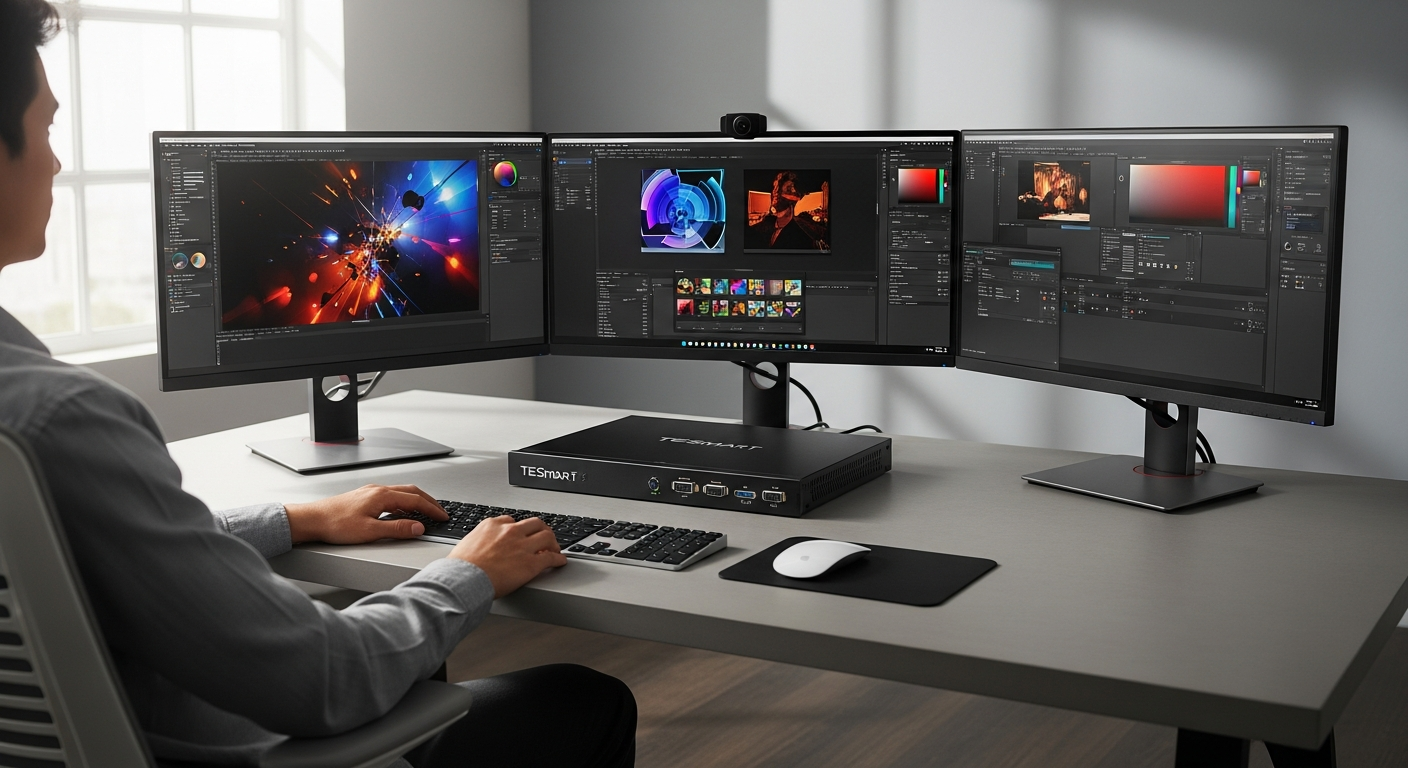
Discover how the TESmart 4-Port 8K HDMI 2.1 KVM switch transforms multi-computer workflows for designers and editors. Explore specs, benefits, and real-world applications.
Creative professionals lose roughly 40 hours monthly switching between computers and manually reconnecting cables. This hidden productivity drain compounds across teams, with each context switch pulling focus from the actual creative work. The TESmart 4-Port 8K HDMI 2.1 KVM Switch addresses this inefficiency head-on, delivering stunning 8K@60Hz and 4K@144Hz performance where traditional KVM solutions fall short. For color-critical design work and video editing, visual fidelity isn't optional—it's fundamental.
The gap between basic KVM switches and professional-grade solutions is significant. Budget alternatives compress video quality, introduce lag, and reset your workspace layout with every switch. You'll spend more time managing the tool than using it. Meanwhile, the TESmart device maintains full visual integrity while handling four connected computers from a single keyboard, mouse, and monitor setup. This guide walks through the technical specifications that differentiate it, how it transforms your workflow, and whether the investment matches your needs.
Explore the TESmart 4-Port 8K HDMI 2.1 KVM Switch on TESmart.DE
Beyond Basic Switching—How 8K HDMI 2.1 Changes Creative Workflows
Resolution isn't just a number. For graphic designers and video editors, it's the foundation of every decision you make. When you're grading color, adjusting typography, or scrutinizing lighting details, anything less than true visual fidelity introduces guesswork into professional work.
Color-accurate design work: 8K resolution ensures true visual fidelity
Eight-thousand-pixel resolution eliminates the compromise. You see exactly what your clients will see, catching color shifts, saturation issues, and contrast problems before delivery. This precision matters when your reputation depends on pixel-perfect output. Design elements that looked acceptable at lower resolutions reveal their flaws at 8K, allowing you to refine work at the level of true mastery rather than approximation.
Real-time video editing performance: 4K@144Hz refresh rates prevent lag
Scrubbing through timelines, previewing effects, and adjusting transitions demand immediate visual feedback. Lag introduces friction into creative flow, forcing you to wait for the interface to catch up with your intentions. The 4K@144Hz capability ensures your monitor responds instantly to every action, maintaining momentum through hours of intensive editing. When you're in the zone, interruption costs time and creative energy.
Future-proof investment: HDMI 2.1 compliance
Professional display technology continues advancing. HDMI 2.1 compatibility ensures this switch works with next-generation monitors launching through 2026 and beyond. You're not locked into current hardware—you're building infrastructure that adapts to your evolving setup. This forward compatibility extends the device's useful lifespan and protects your investment.
Seamless multi-monitor setups: Manage separate workflows without resolution drops
Some professionals run multiple monitors per computer. This switch maintains full performance across complex setups, keeping color-graded timelines on one monitor, asset libraries on another, and client previews on a third. Switching between connected systems doesn't introduce resolution reduction or refresh rate loss. Each computer maintains its designated role without compromise.
Professional-grade output: EDID emulation prevents workspace disruption
The Extended Display Identification Data emulation feature handles something that frustrates countless professionals—icon rearrangement when switching computers. Without EDID emulation, every switch triggers your operating system to re-detect the display, resetting window positions and forcing you to reorganize your workspace. This device remembers display settings automatically, keeping your environment consistent across all connected systems.
The Four-Computer Advantage for Creative Teams
Managing a single workstation limits your operational flexibility. A four-computer setup, controlled through a single input device, fundamentally changes how you organize work.
Dedicated workstation architecture: Assign specialized roles
Instead of juggling software on one machine, assign different computers to different tasks. One handles rendering jobs while you edit on another. A third manages assets and file organization. A fourth handles client communication and presentation tools. Each system stays optimized for its specific role, with no resource contention or software conflicts.
Parallel project workflows: Eliminate context-switching penalties
Starting a new project normally means closing the current one, switching folders, and mentally transitioning between work. With four computers, you maintain separate projects on different systems. Switch between them instantly using your keyboard, mouse gestures, or the IR remote. Your brain doesn't experience the startup delay of loading a new project—it's already running.
Specialized software optimization: Assign applications strategically
Adobe Creative Suite runs on one machine optimized for color accuracy and 16-bit image processing. DaVinci Resolve runs on another with GPU acceleration for real-time color grading. 3D rendering happens on a third with maximum CPU and RAM allocation. Each software installation runs on hardware configured specifically for its demands, eliminating the compromise of trying to balance competing needs.
Collaborative efficiency: Multiple team members access shared workstations
Team members don't physically move between desks. They use the same keyboard, mouse, and monitor setup to access different workstations based on their current task. Asset managers access the storage system. Editors access the timeline workstation. Clients review work on the presentation system. Physical workspace shrinks while capability expands.
Reduced downtime during updates: Continue working while one system reboots
Windows updates, macOS patches, and software installations force temporary system unavailability. Rather than stopping work entirely, you switch to another connected computer and continue. A system can update in the background while you maintain productivity elsewhere.
Check current availability and pricing on TESmart.DE
USB 3.0 Connectivity and Peripheral Sharing Explained
The switch doesn't just control video and input devices. USB 3.0 ports enable genuine peripheral sharing across all four connected computers.
High-speed data transfer: Move large files without bottlenecks
External SSDs, project archives, and asset libraries move between computers at USB 3.0 speeds (up to 5 Gbps). Transferring a 50GB video project takes minutes, not hours. You're not constrained by network speeds or limited by thumb drives. Direct peripheral connections maintain the performance that professional work demands.
Unified peripheral ecosystem: Connect once, access everywhere
Connect your Wacom tablet once. Access it from any of the four computers. The same applies to external hard drives, audio interfaces, and graphics tablets. Your professional peripherals don't sit idle waiting for you to manually reconnect them. They're available across your entire system architecture.
Audio flexibility: 3.5mm stereo output supports various setups
The integrated audio output supports studio monitors, headphones, or external audio interfaces without requiring separate switching solutions. Audio doesn't require manual cable management between systems. Your sound output remains consistent whether you're on computer one or four.
Reduced cable clutter: Eliminate per-workstation USB hubs
Traditional multi-computer setups require each workstation to have its own USB hub, audio interface, and peripheral connections. This switch consolidates that infrastructure. Fewer cables mean easier cable management, less visual clutter, and fewer connection points that can fail.
Professional peripheral support: Industry-standard devices integrate seamlessly
The device works with Wacom tablets, Thunderbolt docks, and external SSD arrays—the tools that serious professionals use. You're not forced into budget-grade peripheral compatibility. Your current setup integrates without modification.
Switching Methods That Fit Your Workflow
Different work situations demand different switching approaches. This device accommodates multiple methods, letting you choose what suits your moment.
Front panel buttons: Immediate tactile feedback
Physical buttons provide instant switching with visual confirmation. Power users who prefer direct control appreciate the tangible feedback of a button press. There's no ambiguity about whether your command registered—the button click confirms it.
Hotkey commands: Keyboard shortcuts for continuous workflow
Programmable keyboard shortcuts mean you never remove your hands from the keyboard during intensive sessions. Your fingers stay on the keys, maintaining rhythm and flow. Custom hotkey profiles let different team members set up shortcuts matching their muscle memory.
Mouse gesture switching: Activate switching through mouse movements
Moving your mouse in a specific pattern triggers a computer switch. This method minimizes disruption to creative work, making switching feel less like an external action and more like part of your natural movement.
IR remote control: Control switching from anywhere in the room
During client presentations, you might be standing away from your desk. The included IR remote lets you switch computers from across the room. This capability proves valuable during collaborative sessions where you need to showcase work on different systems without returning to your input devices.
Customizable switching profiles: Adapt switching methods to your project
Different projects might benefit from different switching approaches. Set up hotkey profiles for editing work, button-based switching for client presentations, and gesture switching for design sessions. Your workflow adapts to different contexts without manual reconfiguration.
EDID Emulation—The Feature That Saves Hours
Among all KVM features, EDID emulation might seem technical and obscure. In practice, it's one of the most valuable capabilities for maintaining creative momentum.
Automatic display recognition: Prevents desktop rearrangement
When you switch from Computer A to Computer B using a standard KVM, your operating system detects a "new" display and resets your workspace. Windows rearranges your taskbar and desktop icons. macOS forgets your window positions. EDID emulation tricks your operating system into recognizing the same display, preventing this frustrating reset.
Consistent workspace layout: Your workspace stays exactly as you left it
Your editing timeline remains where it was. Tool palettes stay in their positions. Reference monitors hold their spots. When you switch back to the previous computer, everything is exactly as you left it—no reorganization required, no lost context. This consistency matters more than it seems during an eight-hour editing session.
Resolution stability: Eliminates flicker and re-scaling
Switching computers without EDID emulation introduces brief flicker as the display detects a resolution change and re-scales the image. This momentary disruption jolts you out of focus. EDID emulation eliminates that flicker entirely, making the switch feel seamless and transparent.
Professional monitor compatibility: Works with color-graded reference displays
Color-critical monitors require stable, consistent timing signals. EDID emulation maintains that stability across all connected systems, ensuring your color grading remains consistent whether you're on Computer A or Computer B.
Reduced workflow interruption: Maintain spatial awareness during rapid switching
When your workspace stays consistent, your spatial memory stays intact. You know where buttons are without looking. You remember where you left specific tools. This cognitive continuity matters more than statistics suggest, reducing mental load and maintaining creative flow.
The Bottom Line
The investment in the TESmart 4-Port 8K HDMI 2.1 KVM Switch extends beyond consolidating cables. It's about reclaiming the creative momentum that fragmented workflows destroy. The 8K@60Hz capability ensures your color-critical work maintains integrity throughout the design and editing process. EDID emulation prevents the desktop rearrangements that interrupt focus. The four-computer capacity means you never sacrifice performance for convenience—each system handles its designated role optimally.
For creative professionals managing rendering on one machine, editing on another, asset organization on a third, and client communication on a fourth, this switch delivers measurable productivity gains. Those recovered hours add up quickly. The frustration of wrestling with resolution drops and display resets diminishes with each switch between computers. The ability to maintain multiple parallel projects without mental context-switching overhead transforms how you approach complex work.
If you're currently managing multiple workstations and spending more time managing connections than creating work, this device warrants serious evaluation.
View the TESmart 4-Port 8K HDMI 2.1 KVM Switch specifications and order today